
⚠️ This page connects you to Atovia’s partners and affiliate markets. We may receive a commission from affiliate partners for activities made through these links. Discount offers may change at any time according to policy! Rest assured, there are no additional costs to you! We hope this saves you time in finding the right items!
- Quick Answer: Can You Screen Share Disney+ Movies?
- Why Screen Sharing Disney+ Often Shows a Black Screen
- The Official Way: SharePlay on Disney+
- How to Start a SharePlay Movie Night: Step by Step
- How Many People Can Join, and What About Streams?
- Watching With Someone in Another Country
- Casting to the TV: AirPlay and Chromecast Are Different
- Troubleshooting: When Watching Together Doesn’t Work
- Frequently Asked Questions
- Your Next Step Today
You want to watch a movie with a friend who lives somewhere else, and you are hoping a simple screen share will do it. Here’s the short version: Disney+ has an official way to watch together called SharePlay, and a plain screen share may leave your friend staring at a black screen.
Quick Answer: Can You Screen Share Disney+ Movies?
The official route is SharePlay through FaceTime, not a regular screen share. SharePlay keeps playback in sync while each person watches on their own device.
Some Discord guides describe screen sharing Disney+ instead. Those guides themselves admit a black screen can show up, and Disney does not document that method as a feature.
- One Disney+ help page (updated August 20, 2025) lists iPhone, iPad, and Apple TV for SharePlay and says Mac is not supported.
- Every participant needs their own valid Disney+ subscription.
- Eligible plans differ by country and by when the help page was updated, so check your own country’s page.
- Casting to a TV with AirPlay or Chromecast is a different thing from watching with a remote friend.
Why Screen Sharing Disney+ Often Shows a Black Screen
Even the Discord guides that rank in search say a black screen can happen when you share Disney+.
Why do viewers see black video when sharing?
The guides we checked acknowledge the problem, but we could not confirm a reason from a Disney source. So we won’t guess at the cause.

Are download tools or workaround settings an official fix?
No Disney-endorsed fix was confirmed. Some commercial guides suggest changing settings or promote their own downloader tools, and those are not Disney solutions.
Here’s the catch: a guide that sells a tool has a reason to call it the answer. If you only want to watch a movie with a friend, the official route in the next section is the safer place to start.
The Official Way: SharePlay on Disney+
SharePlay lets people on a FaceTime call watch the same title in sync, each on their own device.
Which devices work with SharePlay?
The help page updated August 20, 2025 names iPhone, iPad, and Apple TV. It also says Mac is not supported.
Which Disney+ plans qualify?
It depends on which help page you read. Plan requirements vary by country and by when the page was last updated, so treat neither list below as universal.
| Detail | Help page updated Aug 20, 2025 | Help page updated Jan 12, 2024 |
|---|---|---|
| Devices | iPhone, iPad, Apple TV (Mac not supported) | See the page for details |
| Plans listed | Disney+ Premium and certain Hulu, ESPN, and Max bundles | Standard or Premium |
| Subscription | Each participant needs a valid one | See the page for details |
How to Start a SharePlay Movie Night: Step by Step
Start a FaceTime call, open Disney+, play the movie, and tap SharePlay when it is offered. These steps are for iPhone and iPad.
- Start a FaceTime call with your friend or friends.
- Open the Disney+ app on your iPhone or iPad.
- Choose a movie and start playing it.
- Tap SharePlay when the prompt appears.
- Ask your friends to join and make sure each of them has an active Disney+ subscription.
- Check that everyone sees the same moment on screen before you settle in.
Apple TV is also a listed device. The steps there are not covered here, so check the Disney+ help page for them.
How Many People Can Join, and What About Streams?
The help page updated August 20, 2025 says a SharePlay session can have up to 32 participants. Limits may differ elsewhere or change over time.

🛒 Recommended Product
Can we use one account for everyone?
Not really. That same page says that when people use the same account profile, the account’s concurrent stream limit applies, and it lists that limit as up to 4 streams.
There is also the Household rule. Disney+ says a subscription cannot be shared outside the Household. A friend outside it should use their own account or, where available, Extra Member.
Watching With Someone in Another Country
Yes, people in different countries or regions can start or join a SharePlay session. The movie itself may still be unavailable to one of you.

So before the call, run through this short checklist:
- Regional catalogs can differ, so a title may exist for you but not for your friend.
- Age rating restrictions can block a title.
- Each person’s profile settings can affect what they can watch.
- Each person needs their own valid subscription.
- Open the movie in each person’s app to confirm it shows up.
Casting to the TV: AirPlay and Chromecast Are Different
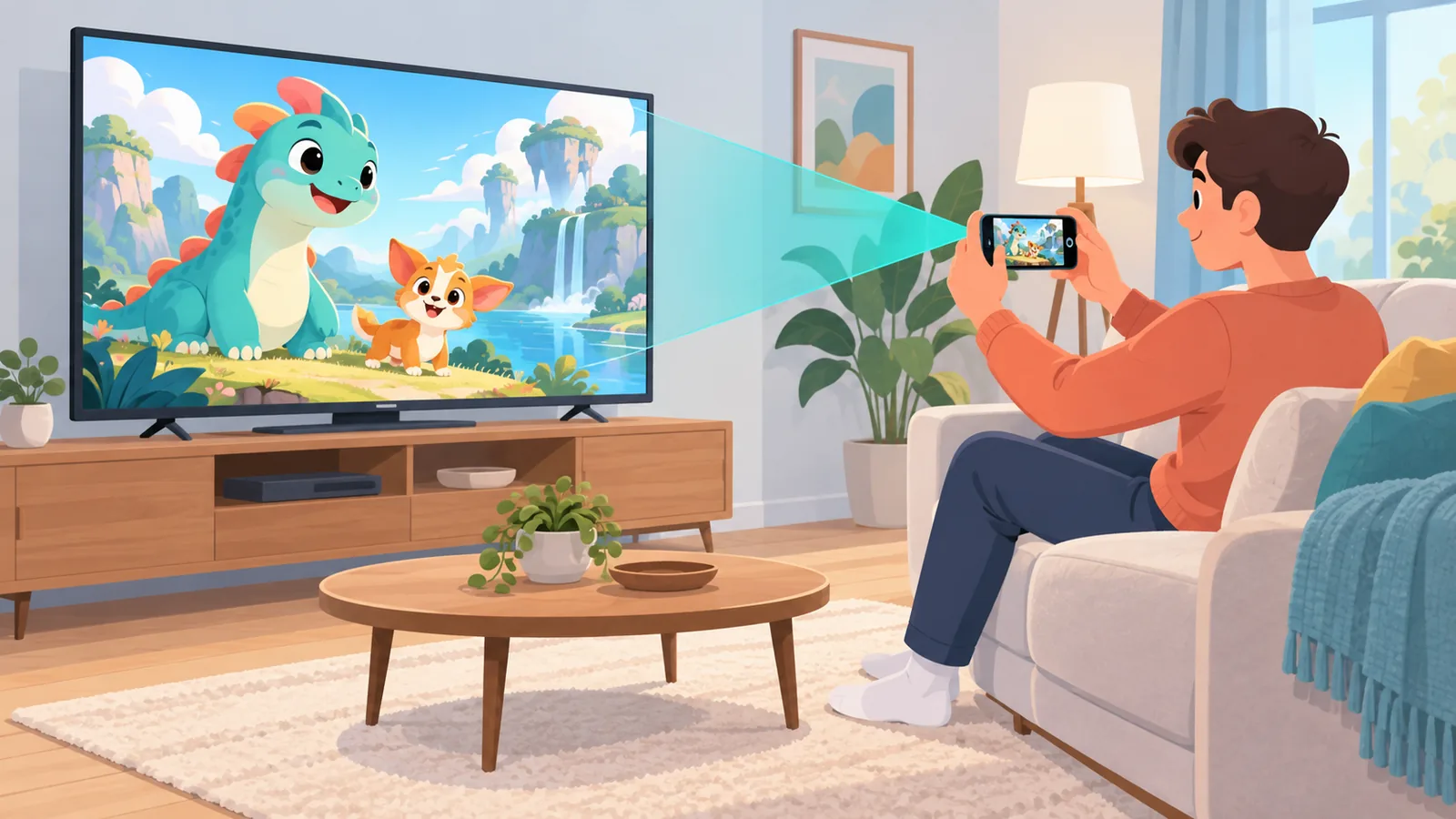
AirPlay and Chromecast send a movie from your mobile device to your own TV, not to a remote friend.
Disney+ documents these icons on a separate help page (no date shown). Use them when you want the big screen at home, and use SharePlay when you want to watch with someone far away.
| Option | Purpose | Who watches | Status |
|---|---|---|---|
| SharePlay | Watch in sync over FaceTime | Several people, each on their own device | Documented by Disney+ |
| AirPlay or Chromecast | Send content to a TV | You, on your own TV | Documented by Disney+ |
| Discord screen share | Share your screen in a call | Whoever joins the call | Unofficial, black screen possible |

Troubleshooting: When Watching Together Doesn’t Work
Most failures trace back to device, plan, or catalog issues, so check those first.
- Confirm you are on an iPhone, iPad, or Apple TV, since Mac is not supported.
- Check plan eligibility on your own country’s latest Disney+ help page.
- Make sure everyone on the call has an active subscription.
- Confirm the title is available in each person’s region and fits their age rating settings.
- If people share one profile, remember the account’s stream limit applies.
- Skip unofficial workarounds, since no Disney-endorsed fix for a black screen was confirmed.
Frequently Asked Questions
Does SharePlay work on a Mac?
No. The help page updated August 20, 2025 says Mac is not supported.

Do my friends need their own Disney+ account?
Yes. Each participant needs a valid Disney+ subscription.
Can I use Discord instead?
Commercial guides describe it, but a black screen can occur. It is not a Disney-documented feature.
Will the plan I have work?
It varies by country and by the date of the help page. Check the latest Disney+ help page for your country.
Can I share my account with a friend outside my home?
Not outside your Household. Your friend should use their own account or, where available, Extra Member.
Your Next Step Today
Check your device and plan on your country’s Disney+ help page, then ask your friend to do the same. Once you both qualify, pick a movie and start a FaceTime call.
References
- TunePat, “How to Stream Disney Plus on Discord to Watch Together” (2026)
- DispCam, “How to Stream Disney Plus on Discord? (2026 Guide)” (2026)
- Disney+ Help Center, “SharePlay on Disney+” (updated August 20, 2025)
- Disney+ Help Centre, “SharePlay on Disney+” (updated January 12, 2024)
- Disney+ Help Centre, “Using AirPlay or casting Disney+ to your TV”
- Disney+ Help Centre, “Sharing your Disney+ subscription” (updated May 21, 2026)
Want more comparisons and buying guides?