⚠️ This page connects you to Atovia’s partners and affiliate markets. We may receive a commission from affiliate partners for activities made through these links. Discount offers may change at any time according to policy! Rest assured, there are no additional costs to you! We hope this saves you time in finding the right items!
- 1. What Is PS5 Game Sharing and How Does It Work
- 2. What You Need Before Setting Up Game Sharing
- 3. How to Set Your PS5 as the Primary Console
- 4. How to Access Your Games on the Second PS5
- 5. Can Two Players Use the Same Game at the Same Time
- 6. PlayStation Plus Sharing — What Carries Over and What Doesn’t
- 7. Limits, Rules, and What Sony Allows
- 8. How to Switch Your Primary Console to a Different PS5
- 9. Fixing Common Game Sharing Problems
- 10. Tips to Get the Most Out of PS5 Game Sharing
- PS5 game sharing lets one PSN account share its full digital library across two consoles simultaneously.
- You designate one PS5 as your Primary Console — any user on that system can play your games without signing into your account.
- On the second PS5, you must stay signed in to your PSN account to access your purchases.
- Both consoles can play the same digital game at the exact same time with just one purchase.
- PlayStation Plus benefits extend to all users on the primary console only.

1. What Is PS5 Game Sharing and How Does It Work
PS5 game sharing is an official Sony feature that allows a single PSN account to make its digital game library available across two PlayStation 5 consoles at the same time. Every digital game you purchase from the PlayStation Store is tied to your PSN account. Sony’s licensing system then allows that account to authorize one console — called the Primary Console — to run those games for any user on the system, no login required.
The second console can also access the same library, but only while the account owner is actively signed in. This split-access design is intentional: it lets two people in different locations — or two people in the same home — both enjoy your digital purchases without Sony counting it as a violation of their terms of service.
Game sharing works for all digital PS5 titles, backward-compatible PS4 games in your library, and even PlayStation Plus game catalog titles if your account holds an active subscription.
2. What You Need Before Setting Up Game Sharing
Before you touch any settings, make sure everything below is in place. Skipping any of these will cause the setup to fail or games to appear locked.
- Two PS5 consoles — any combination of the standard disc edition and the Digital Edition works fine.
- One PSN account with at least one digital game purchase in its library.
- Internet access on both consoles — needed during setup and for license verification on the non-primary console.
- Your PSN login credentials — you will need to sign into the second console manually, so have your email and password ready.
- PlayStation Plus subscription (optional) — required only if you want to share online multiplayer access or PS Plus catalog games.
Both consoles do not need to be in the same location. Game sharing works across different households as long as internet access is available.
3. How to Set Your PS5 as the Primary Console
Designating a PS5 as your primary console is the core action that enables game sharing. Follow these steps exactly on the console you want to be the primary system:
- Power on the PS5 and sign in with your PSN account.
- From the home screen, select Settings (the gear icon in the upper-right corner).
- Scroll down and select Users and Accounts.
- Select Other at the bottom of the list.
- Choose Console Sharing and Offline Play.
- Press Enable.
A confirmation screen will appear indicating that console sharing is now active. From this point on, every user profile on this PS5 — including accounts that have never purchased a single game — can freely download and play every title in your digital library without needing your credentials.
This setting also enables offline play on the primary console, meaning your games remain accessible even when the system is not connected to the internet.
🛒 Recommended Product
4. How to Access Your Games on the Second PS5
The second console requires a slightly different approach because it is not set as the primary system for your account. Here is how to access your full game library on it:
- Power on the second PS5.
- Sign in using your PSN account — the same one that owns the digital games and is set as primary on Console 1.
- Open your Game Library from the home screen.
- All purchased digital titles will appear. Select any game to download or stream it.
One important restriction: you must remain signed in on this console to keep playing. If you sign out of your PSN account on Console 2, other users on that system will not be able to access your games. The second console continuously checks with Sony’s servers to verify your license while you are signed in.
This requirement also means Console 2 must stay connected to the internet during gameplay. An internet outage mid-session can trigger a license check failure and interrupt play.
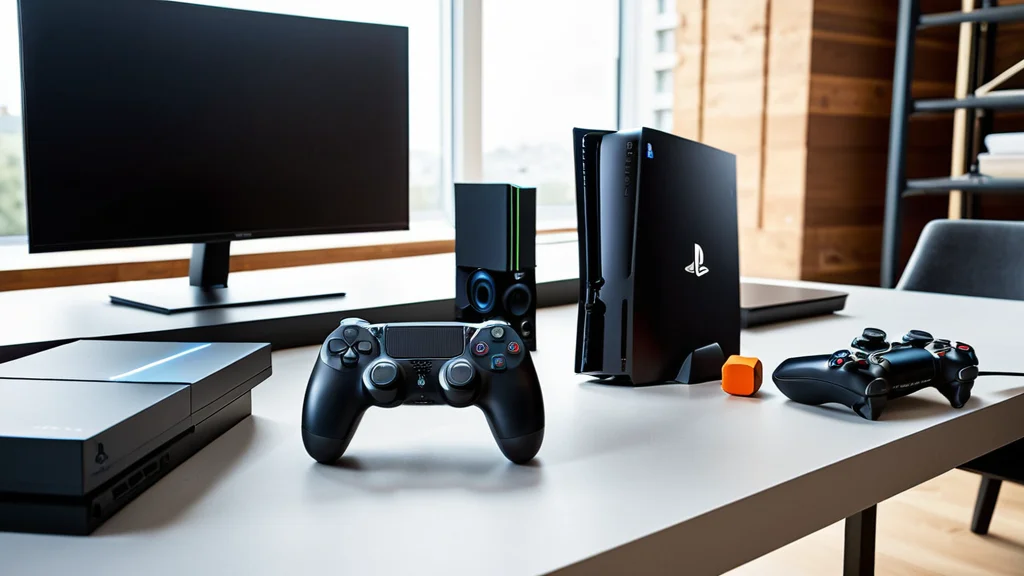
5. Can Two Players Use the Same Game at the Same Time
Yes — this is one of the most compelling benefits of PS5 game sharing. Two people can play the exact same digital game simultaneously on both consoles using a single purchase. Here is how it works in practice:
Player A is signed in on Console 2 (the non-primary system) and launches a game. At the same time, Player B is on Console 1 (the primary console) under their own separate PSN account and launches the very same game. Both sessions run independently with no conflict.
This works because Console 1’s primary status grants blanket access to the library for all its users, while Console 2’s access is authorized through your active session. Sony treats these as two separate license validations from the same account.
The simultaneous play feature is especially useful for families who want to play co-op titles together without purchasing two copies, or for friends who want to try a game together before committing to individual purchases.
6. PlayStation Plus Sharing — What Carries Over and What Doesn’t
PlayStation Plus benefits follow the same primary/secondary console logic as your game library, but with one key difference: the benefits only fully extend on the primary console.
| PlayStation Plus Benefit | Primary Console (All Users) | Second Console (Account Holder Only) |
|---|---|---|
| PS Plus game catalog access | ✅ Available to all users | ✅ Only while signed in |
| Online multiplayer access | ✅ All users can play online | ✅ Only the account holder |
| Monthly free games | ✅ Shared with all users | ✅ Account holder only |
| Cloud save storage | ✅ Per user (own subscription) | ✅ Account holder only |
| Exclusive discounts | ❌ Each user needs own PS Plus | ✅ Account holder only |
The most valuable shared benefit is online multiplayer. If you have a PS Plus subscription and Console 1 is your primary system, every person with a profile on that console can access online multiplayer — even without their own PS Plus subscription. This is a significant household money-saver.
7. Limits, Rules, and What Sony Allows
Sony officially supports game sharing as a feature, but there are clear boundaries designed to prevent commercial exploitation of the system.
- One primary console per account: Your PSN account can only be set as primary on one PS5 at a time. If you set a new console as primary, the previous one loses that status immediately.
- Digital games only: Physical disc games cannot be shared through this system. Game sharing is exclusively for digitally purchased titles.
- Two-console limit: Game sharing is designed for two consoles — the primary and one additional signed-in console. Attempting to share across more than two consoles simultaneously will trigger license errors.
- Switch frequency limit: Sony restricts how often you can change which console holds primary status. If you switch too frequently, you may be locked out of changing it for up to six months.
- DLC and add-ons: Downloadable content follows the same rules as base games. If the DLC is purchased on your account, it shares the same way.
- No commercial sharing: Sharing your account with strangers for payment or running a game-sharing service violates PlayStation Network Terms of Service and can result in account suspension.
8. How to Switch Your Primary Console to a Different PS5
If you get a new PS5 or need to move your primary console designation to a different system, follow these steps carefully to avoid triggering Sony’s switching frequency limit.
Step 1 — Disable on the current primary console (preferred method):
- On your current primary PS5, go to Settings → Users and Accounts → Other → Console Sharing and Offline Play.
- Select Disable.
Step 2 — Enable on the new console:
- Sign in with your PSN account on the new PS5.
- Go to Settings → Users and Accounts → Other → Console Sharing and Offline Play.
- Select Enable.
If you no longer have access to the old primary console, you can deactivate it remotely through your PlayStation account management page on the PlayStation website. Note that remote deactivation via the web portal is limited to once every six months, so use it only when necessary.
9. Fixing Common Game Sharing Problems
Games are missing from the library on Console 2
Verify that you are signed in with the exact PSN account that purchased those titles. Sub-accounts or family accounts will not see purchases made on a different account unless Console 2 has been set as that account’s primary system.
“Cannot use this content” error message
This error almost always means the primary console designation was lost or changed. Go to Console 1, navigate to Settings → Users and Accounts → Other → Console Sharing and Offline Play, and confirm that it reads “Enabled.” If it does not, re-enable it.
Unable to enable Console Sharing and Offline Play
If the Enable option is grayed out or produces an error, your account has likely hit Sony’s switching frequency limit. This lock lasts up to six months. Contact PlayStation Support if you need an exception, particularly in cases of console replacement or hardware failure.
PlayStation Plus benefits not working for other users on Console 2
PS Plus benefits do not extend to other user profiles on the non-primary console. Only the account holder benefits on Console 2. To share PS Plus perks with others, ensure Console 1 is set as the primary console for your account.
Session interrupted during simultaneous play
If one player is kicked out mid-game, a license verification failure is the most likely cause. Check that both consoles are connected to the internet, both users are properly signed in, and that no one changed the primary console setting during the session.
Downloaded game suddenly shows a lock icon
This happens when Console 2 loses its internet connection and cannot verify the license. Reconnect to the internet and relaunch the game. If the issue persists, sign out and sign back in on Console 2.
10. Tips to Get the Most Out of PS5 Game Sharing
- Assign the primary console to the household system: If one PS5 stays home and another travels, make the home console the primary. This gives every family member full access without needing your login, and ensures the traveling console only needs your sign-in for access.
- Buy digital instead of disc when sharing matters: Physical games cannot be shared through this system. If you know two people will want to play the same title, the digital version gives both players access from a single purchase.
- Avoid changing your primary console unnecessarily: Each switch counts against Sony’s limit. Plan ahead and only switch when you truly need to.
- Keep Console 2 connected to the internet at all times: Since game access on the non-primary console depends on server-side license verification, a stable connection prevents mid-game interruptions.
- Use separate PSN profiles for save data: Both players should have their own PSN profiles to keep game saves, trophies, and progress separate — even when playing from the same shared library.
- Coordinate simultaneous sessions for co-op games: Since both consoles can run the same game at the same time, buy one copy of a co-op title and play together online or locally across both systems.
Set up PS5 game sharing today and unlock your full digital library across both consoles. One purchase, two players, zero extra cost.