⚠️ This page connects you to Atovia’s partners and affiliate markets. We may receive a commission from affiliate partners for activities made through these links. Discount offers may change at any time according to policy! Rest assured, there are no additional costs to you! We hope this saves you time in finding the right items!
Can you play Xbox games on your iPhone without a console? Yes. Xbox Cloud Gaming streams games from remote Xbox servers to your phone, and you can start through Safari with a Microsoft account and an Xbox Game Pass subscription. This guide walks you through the requirements, the setup, and fixes for the most common snags.
- What Xbox Cloud Gaming on iPhone Actually Is
- What You Need Before You Start
- Step-by-Step: Start Playing in Safari
- Add a Home Screen Shortcut for One-Tap Access
- Cloud Gaming vs. Remote Play
- Which Games Can You Play?
- Touch Controls vs. Controller
- Tips for a Smoother Connection
- Troubleshooting Common Problems
- Frequently Asked Questions
- iPhone support starts at iOS 14.4 or later, according to Xbox.
- The official setup path runs through Safari at Xbox.com/play, so you do not need to hunt for a standalone app.
- An Xbox Game Pass subscription is required.
- Xbox recommends 5GHz Wi-Fi or mobile data of 20Mbps or faster.
- Touch controls work in some games only, and an Xbox controller can connect to compatible devices over Bluetooth or a wired connection.
What Xbox Cloud Gaming on iPhone Actually Is
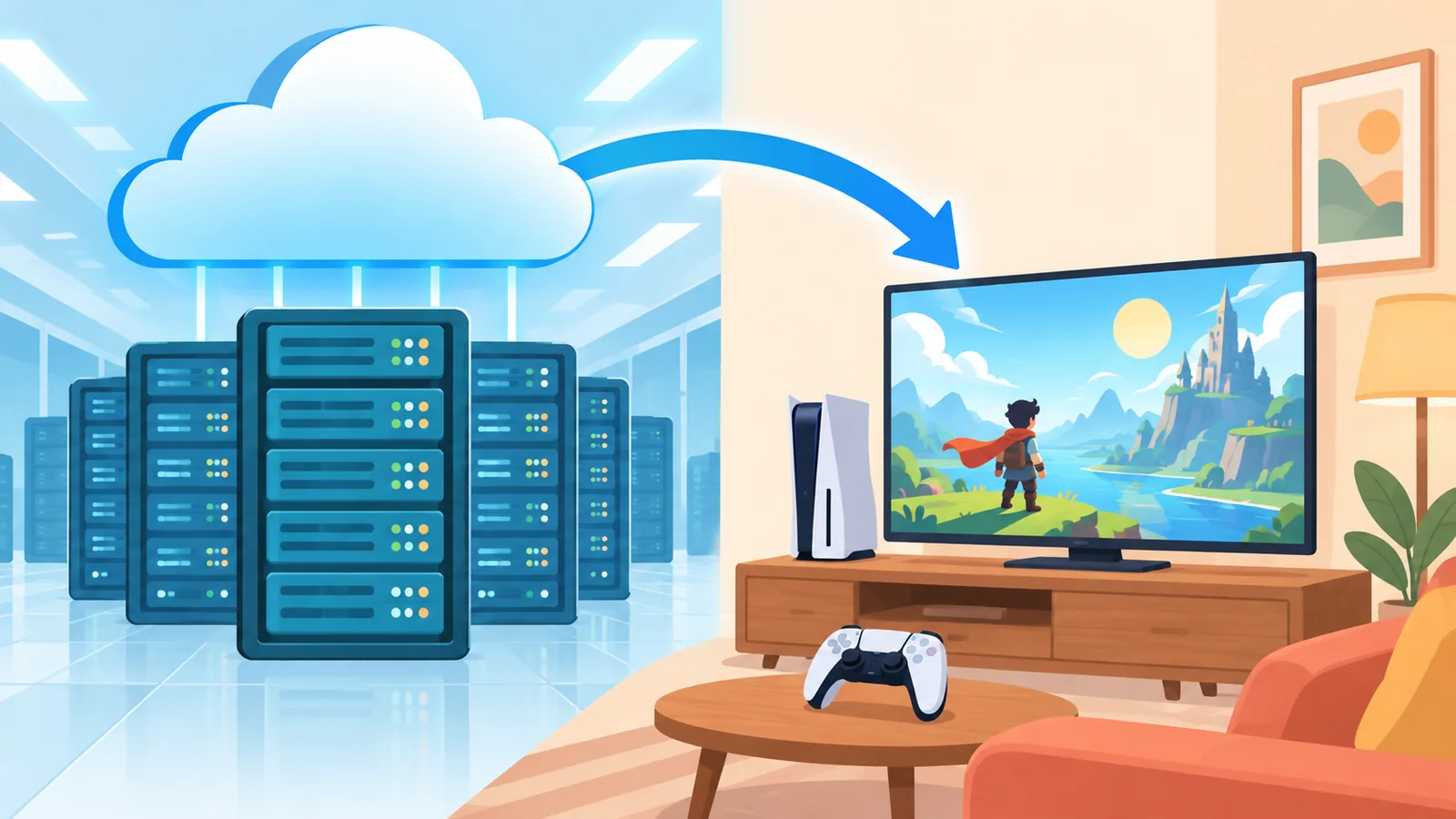
Xbox Cloud Gaming runs games on remote Xbox servers and streams them to your screen. Your iPhone does the work of showing the video and sending your inputs, not running the game itself. That means you do not need an Xbox console to use it.
This is different from Remote Play, which streams a game installed on your own Xbox console at home. The two features sound similar, and mixing them up is one of the most common sources of confusion, so section 5 compares them side by side.
This guide is for anyone with an iPhone who wants the quickest route to playing Xbox games on it, whether you are away from your console or do not own one at all.
What You Need Before You Start
Gather these items first. Having them ready makes the setup take only a few minutes.
- An iPhone running iOS 14.4 or later. Xbox lists iOS 14.4 as the minimum for iPhone. You can check your current version in your iPhone’s Settings app, and update there if you are behind.
- A Microsoft account. You will sign in with it when you reach Xbox.com/play.
- An Xbox Game Pass subscription. Cloud Gaming requires one. Some cloud-playable games that are not included in Game Pass may also need a separate purchase.
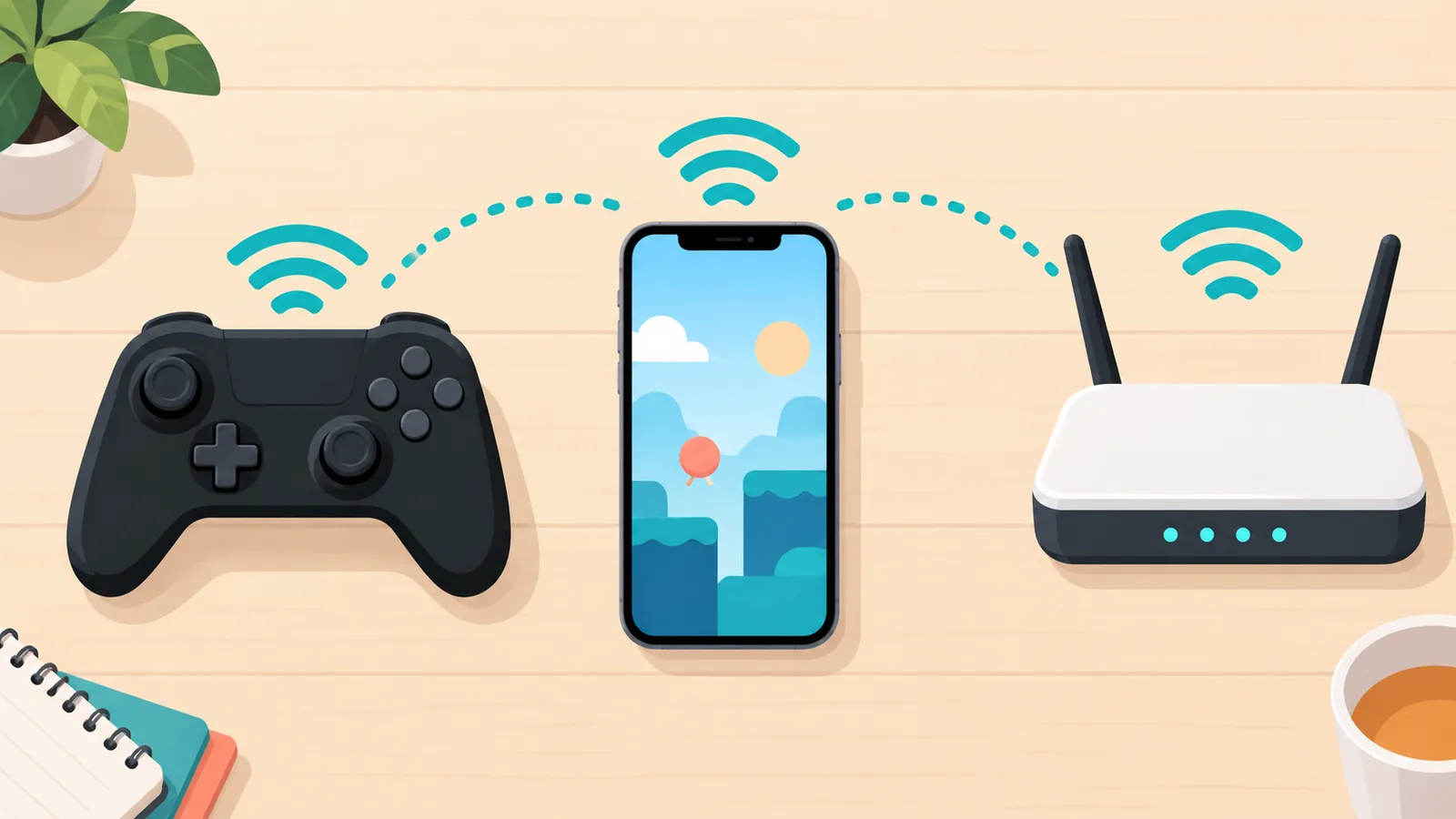
- A good connection. Xbox recommends 5GHz Wi-Fi, or mobile data at 20Mbps or faster.
- Optional: an Xbox controller. Handy if you prefer physical buttons, but not always necessary.
Step-by-Step: Start Playing in Safari
The setup path Xbox describes for iPhone uses your web browser rather than a required standalone app. Here is the basic flow.
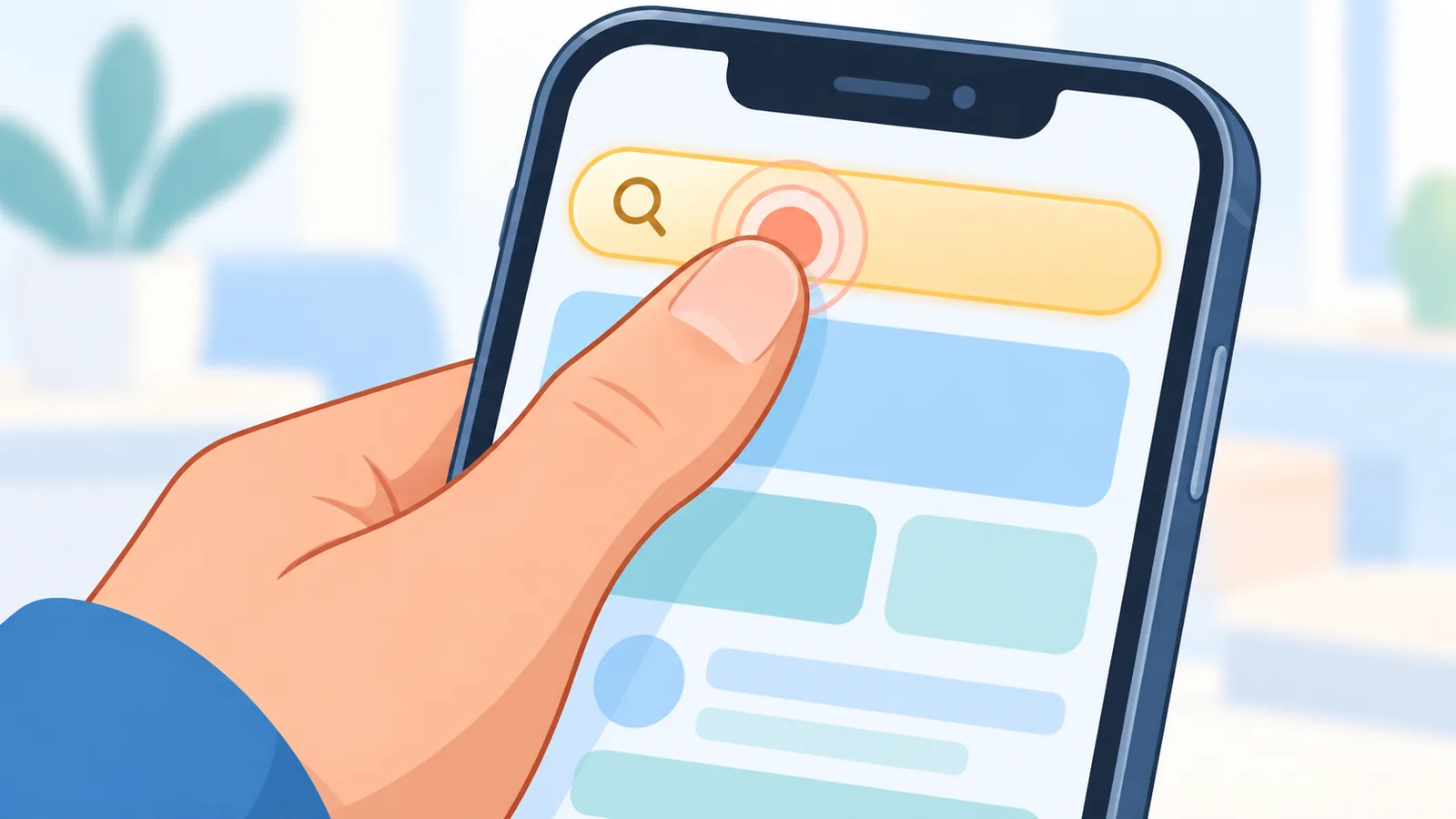
- Open Safari on your iPhone and go to Xbox.com/play.
- Sign in with your Microsoft account.
- Pick a game from the cloud-playable options and launch it.
A quick note: this Safari path comes from Xbox Wire guidance published in 2022. Button names and menu labels on the site can change over time, so follow the on-screen prompts if they look slightly different from what you expect.
Add a Home Screen Shortcut for One-Tap Access
Typing the address every time gets old quickly. Xbox’s guidance explains that you can save a shortcut to your Home Screen from Safari.
- While on the Xbox.com/play page in Safari, tap the Share button.
- Choose Add to Home Screen.
- Confirm the name of the shortcut, then save it.
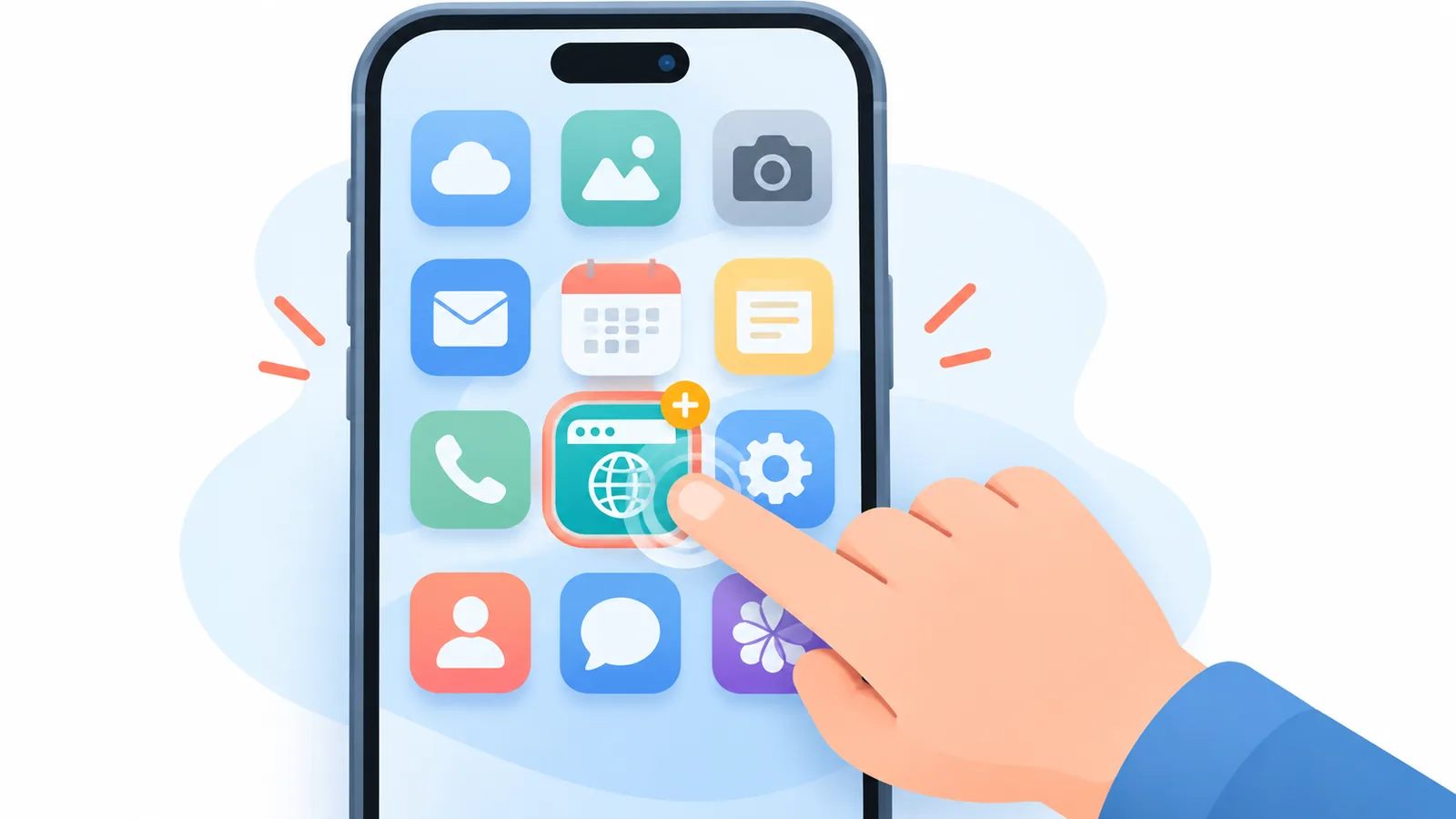
The shortcut sits on your Home Screen like an app icon, so you can jump back into Cloud Gaming with one tap. As with the previous section, this comes from 2022 guidance, and labels may change over time.
Cloud Gaming vs. Remote Play
Both features let you play Xbox games on a phone, but they work in different ways. The table below shows the key differences.
| Feature | Xbox Cloud Gaming | Remote Play |
|---|---|---|
| Where the game runs | On remote Xbox servers | On your own Xbox console |
| Console required | No | Yes |
| What you can play | Cloud-playable games, which are a subset of the Game Pass library | Games installed on your console |
| Suggested use (our editorial take) | You are away from home or do not own a console | You own a console and want to stream your own library |
🛒 Recommended Product
If you do not have a console, Cloud Gaming is the one that applies to you.
Which Games Can You Play?
Not every Game Pass title can be streamed. Games you can play in the cloud are a subset of the Game Pass library, and availability can vary by region, plan, platform, and time.
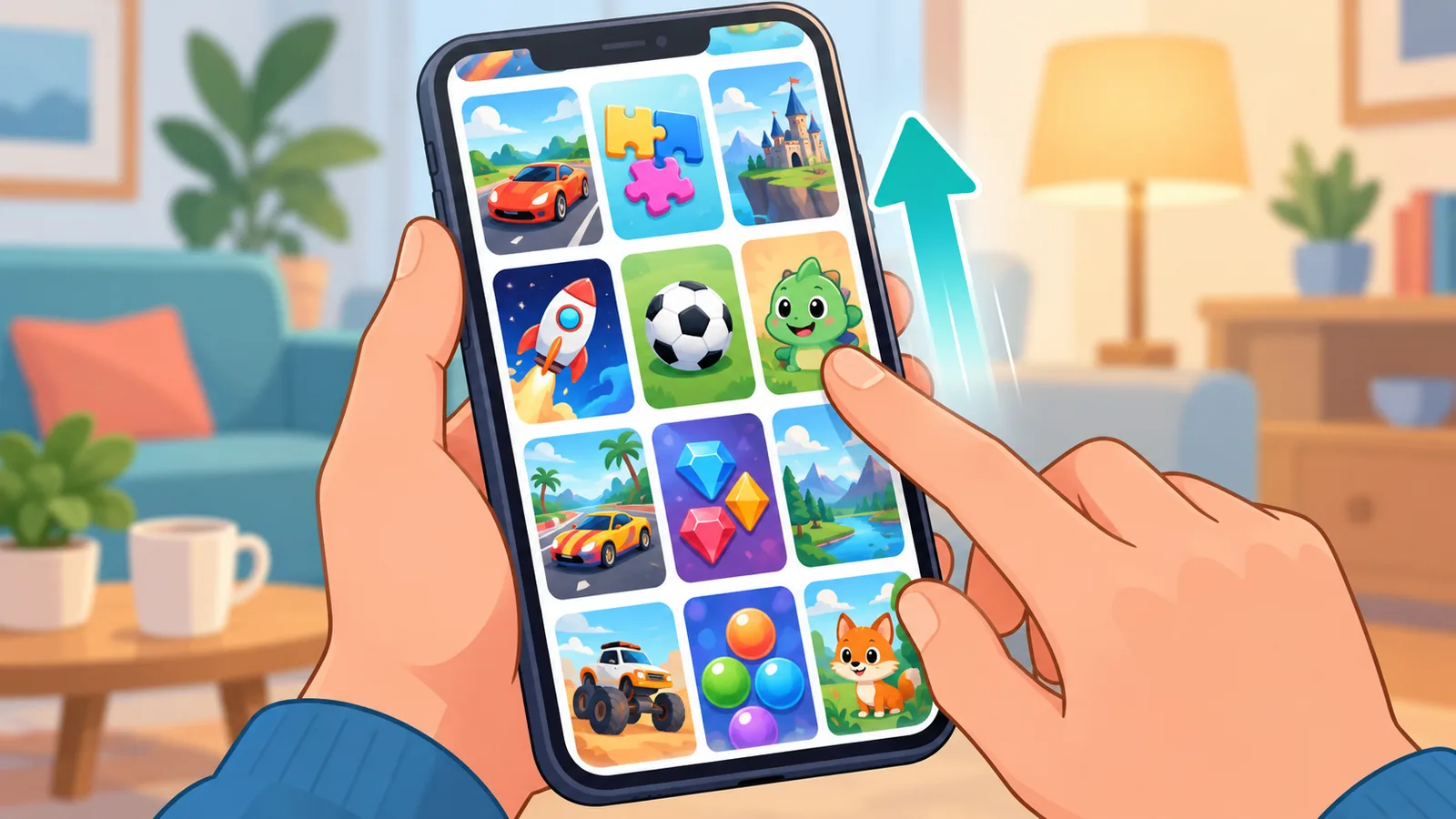
The simplest way to see what you can play is to sign in at Xbox.com/play and browse the cloud-playable games listed there. Do not assume every Game Pass title will appear, and keep in mind that some cloud-playable games outside of Game Pass may require a separate purchase.
Touch Controls vs. Controller
You do not have to own a controller to get started, but it helps to know what each option offers.
Touch controls
- Pros: No extra gear, and easy to use anywhere.
- Cons: Available in some games only, and less precise for fast-paced titles.
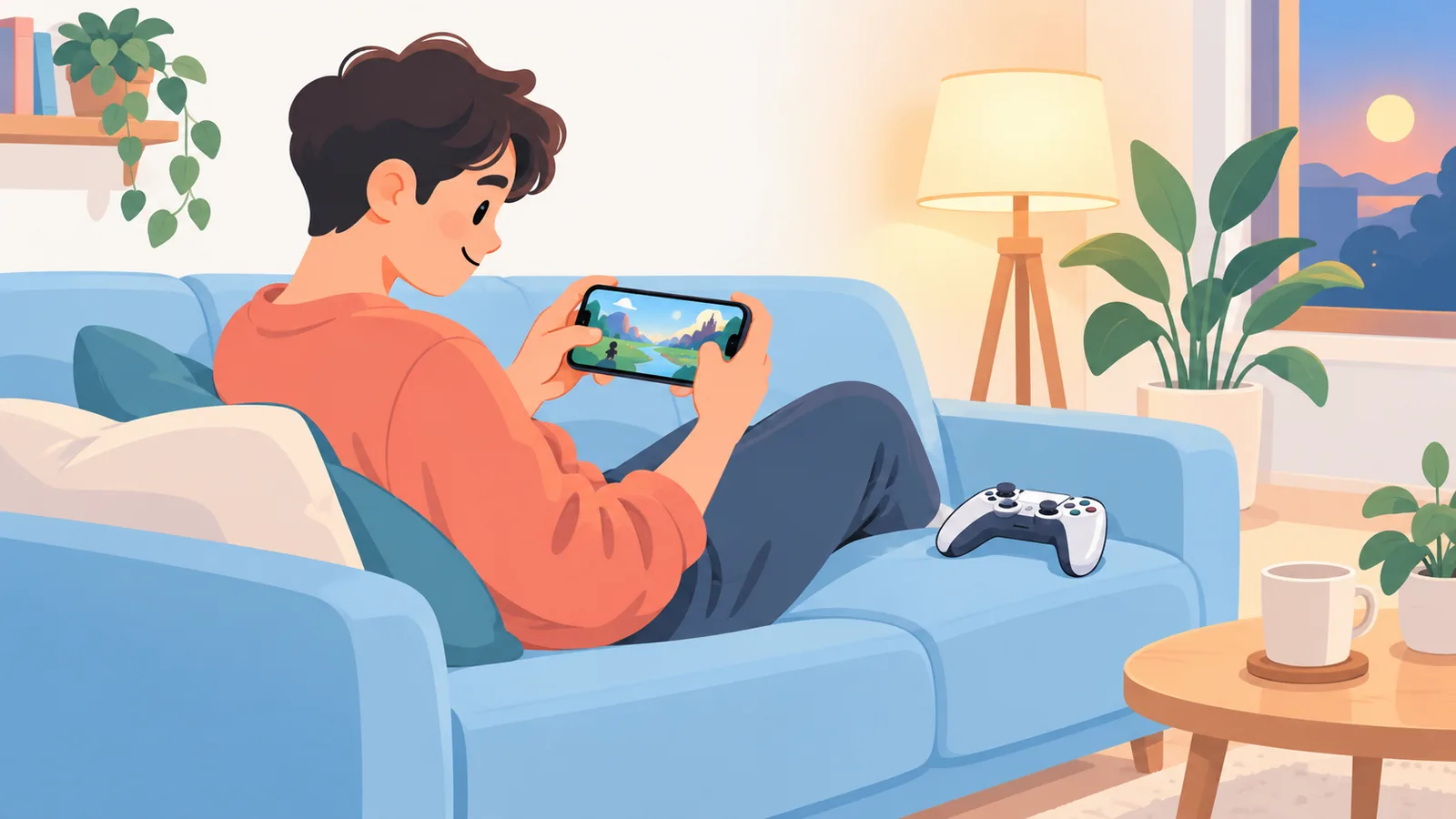
Xbox controller
- Pros: Familiar buttons and better precision.
- Cons: One more thing to carry and keep charged.
Xbox says its controllers can connect to compatible devices over Bluetooth or a wired connection. Check that your setup is compatible before you rely on it.
Tips for a Smoother Connection
- Use 5GHz Wi-Fi and stay close to your router when you can.
- On mobile data, Xbox recommends speeds of 20Mbps or faster.
- Close other bandwidth-heavy apps on your phone, and ask others on your network to pause large downloads or video streams.
- Expect some variation. Xbox notes that cloud game server availability and latency can vary.
Troubleshooting Common Problems
| Problem | What to check | What to try |
|---|---|---|
| Cannot sign in | Check whether you are using the correct Microsoft account and whether it has an active Game Pass subscription. | Re-enter your details, then try again at Xbox.com/play. |
| Game will not launch or is not listed | Check whether the game is cloud-playable for your region, plan, and platform. | Browse the cloud-playable list and choose another title. |
| Laggy or choppy video | Check whether you are on 5GHz Wi-Fi or on mobile data of 20Mbps or faster. | Move closer to the router, close other heavy apps, or try again later. |
| No touch controls | Check whether the game supports touch controls at all. | Try a game with touch support, or connect a compatible controller. |
Frequently Asked Questions
Do I need to install an app?
The official path Xbox describes for iPhone uses Safari at Xbox.com/play, so a standalone app is not part of that route.
Can I play without Game Pass?
No. Xbox Cloud Gaming requires an Xbox Game Pass subscription.
Do I need an Xbox console?
Not for Cloud Gaming, which streams from remote servers. Remote Play does require your own console.

Can I play without a controller?
Yes, in games that support touch controls. Not every game does.
Which iPhones are supported?
Xbox lists iPhone support starting at iOS 14.4 or later.
Ready to try it? Open Safari, head to Xbox.com/play, and sign in. You can read Xbox’s own overview of mobile gaming first.
References
Want more comparisons and buying guides?